Turntable, a core component of Flatfile’s data exchange platform, needs to be really good at helping users find errors, and then correct them. I go into some detail about how I designed this functionality in this post.
But there’s so much more that goes into making a data table feel great to use.
Data-type based column and cell UX
Unlike Google Sheets or Excel, the data displayed in Turntable is based on a pre-defined schema. Which means we can create data-type specific user experiences for our core data-types.
Strings
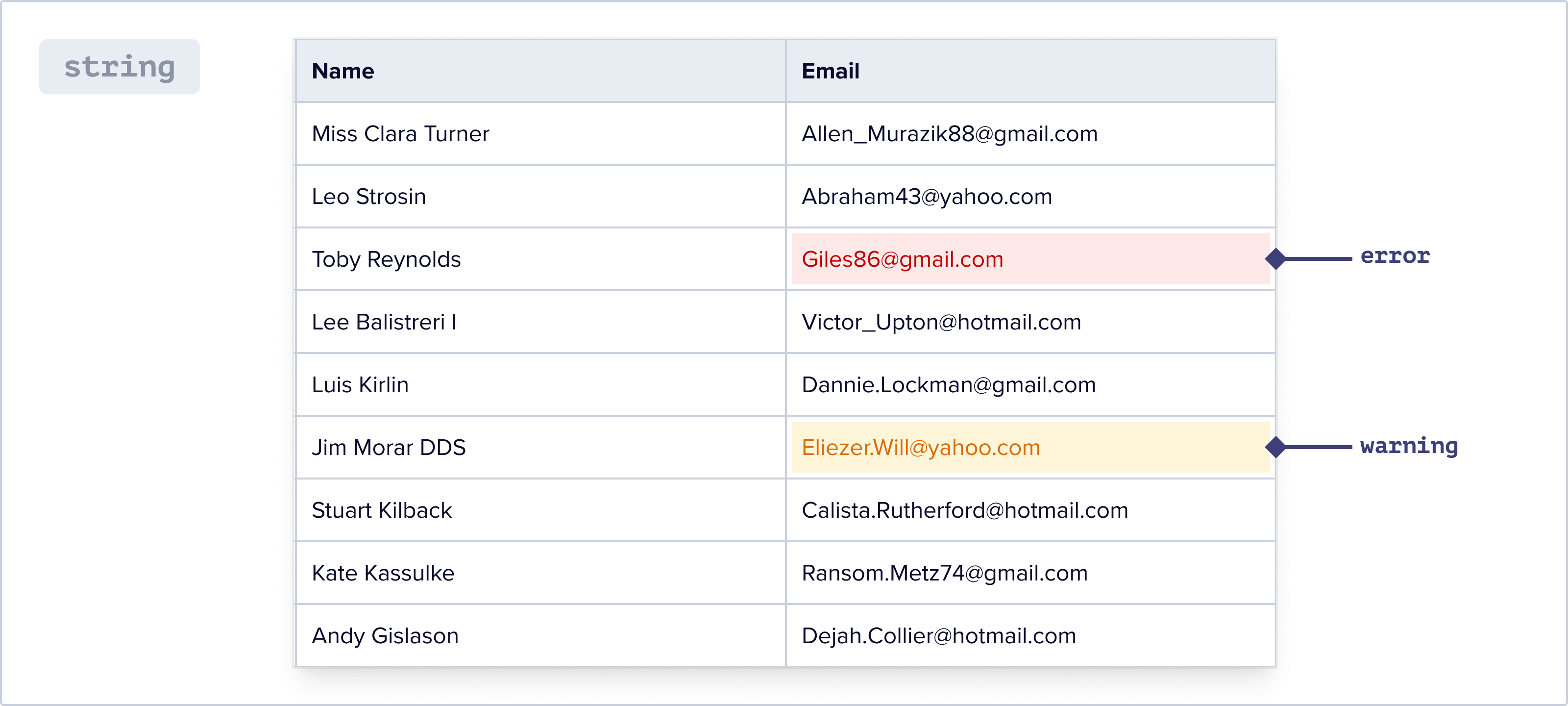
Strings or free text data are the most simply styled: Flatfile’s default font, with text aligned to the left, as is most of the data in our data table:
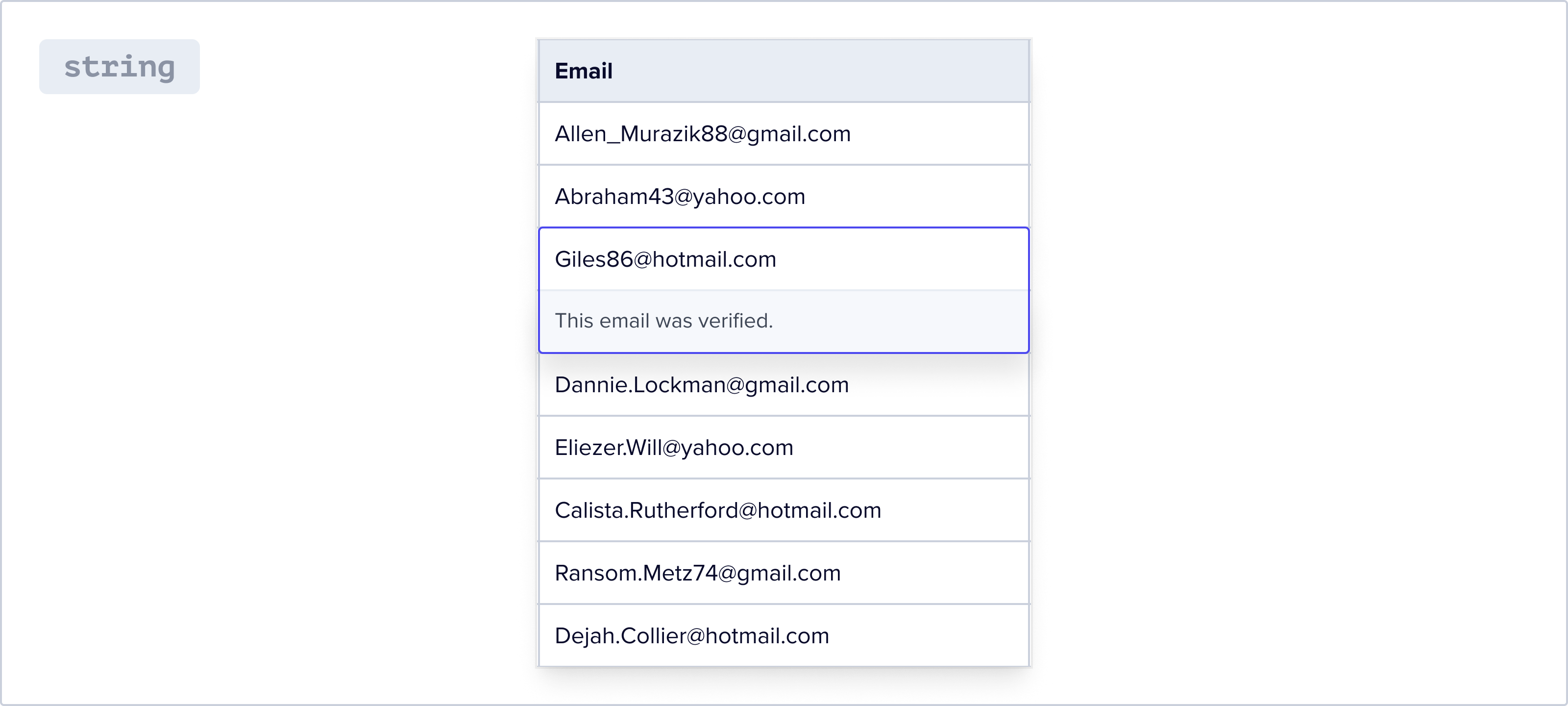
Flatfile makes it easy to encode additional info about data in cells that show on hover, like this:
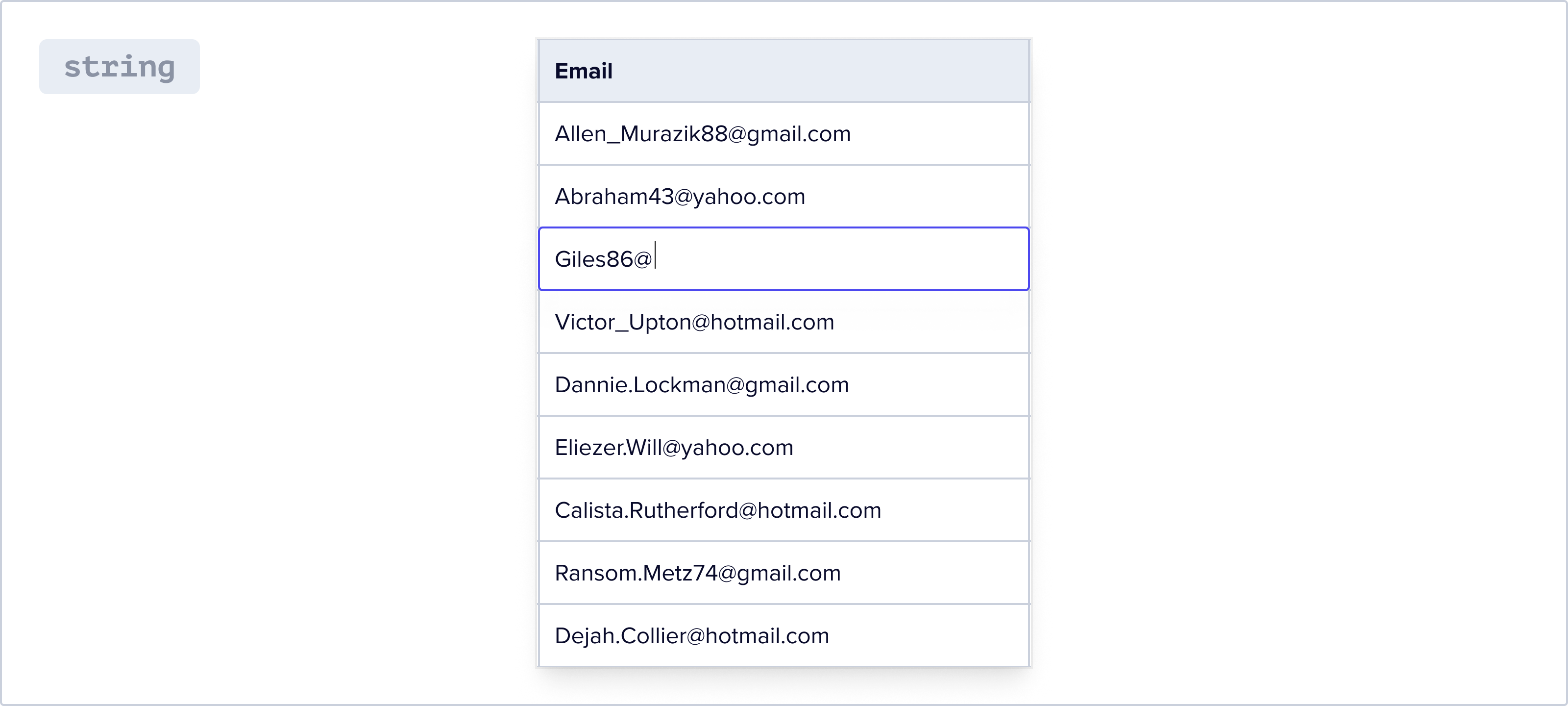
Here’s what edit mode looks like:
Numbers
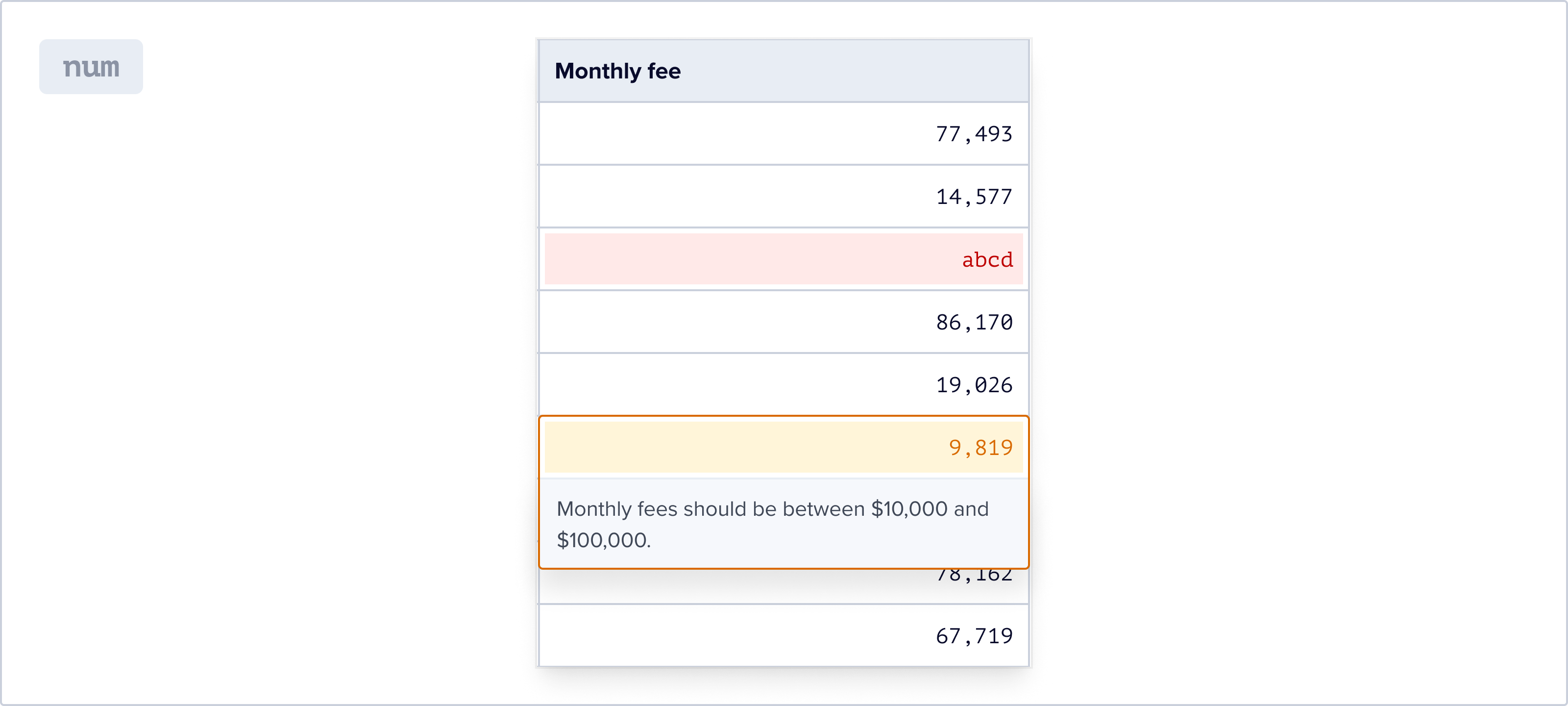
Numbers are displayed in a monospaced font that is easily visually differentiated from our default text font, and are right aligned. We think it’s important to make numerical and string data visually distinct, since it can be easy to conflate string data that look like numbers (for example, a userid that contains only numbers) with numerical data.
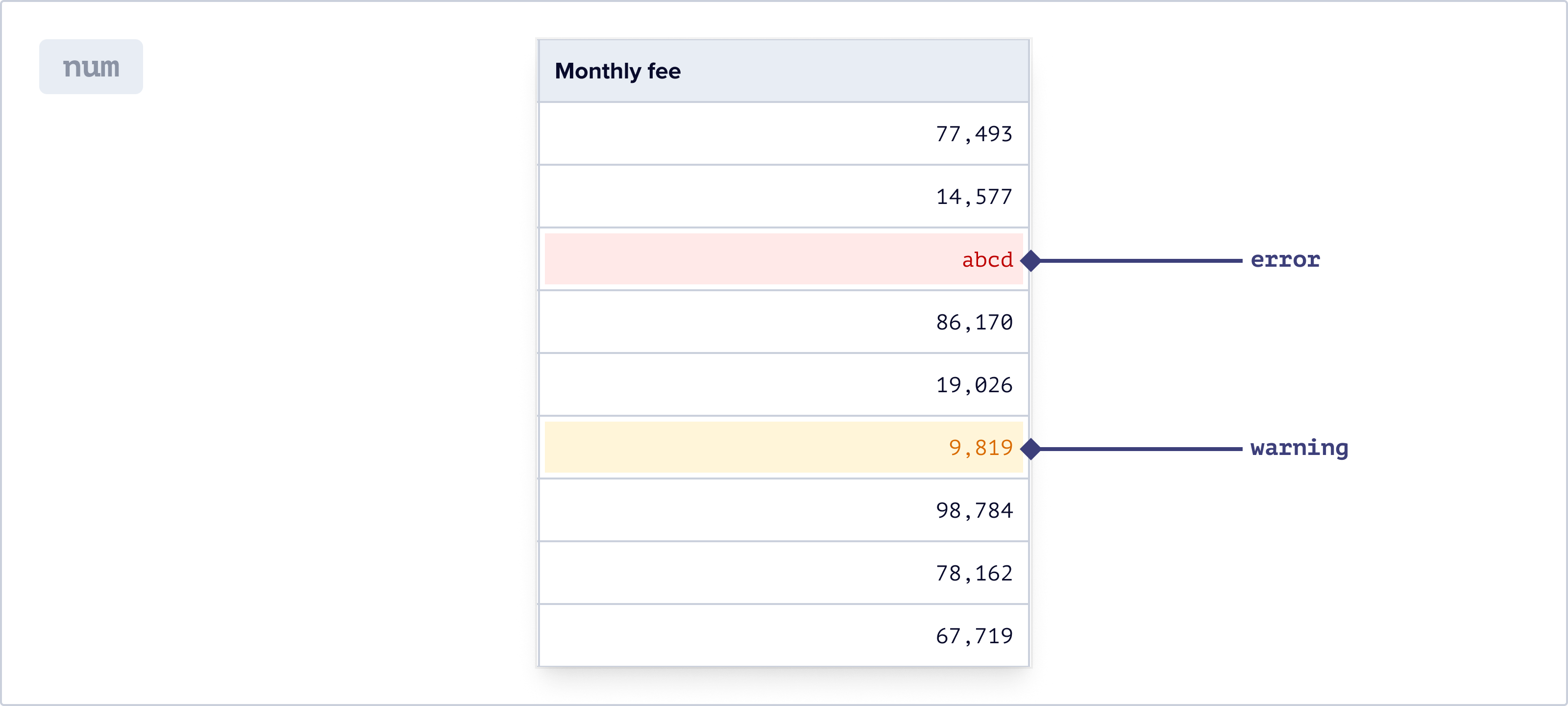
Here’s an example of the hover state of a number value with a warning on it:
Enums
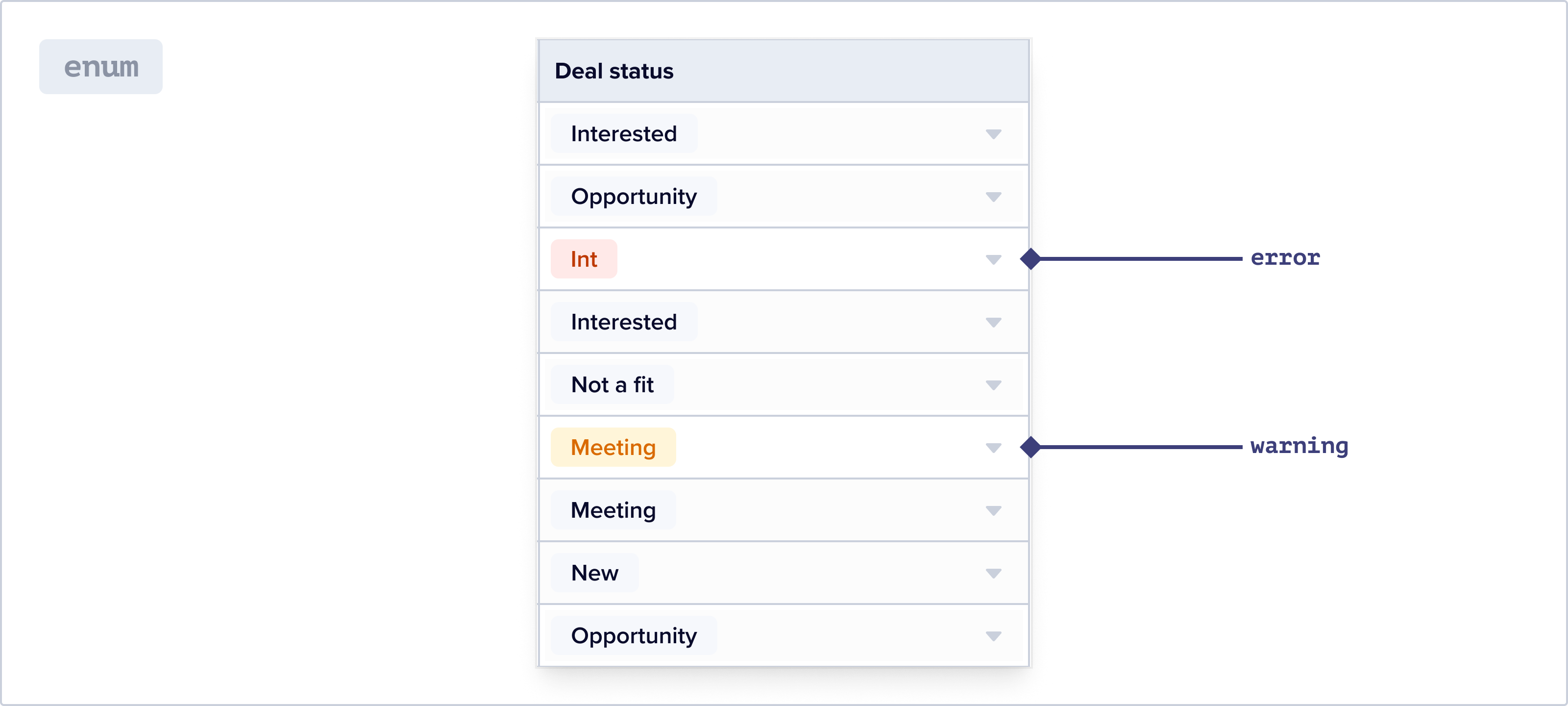
Categorical data or enums are displayed as tags.
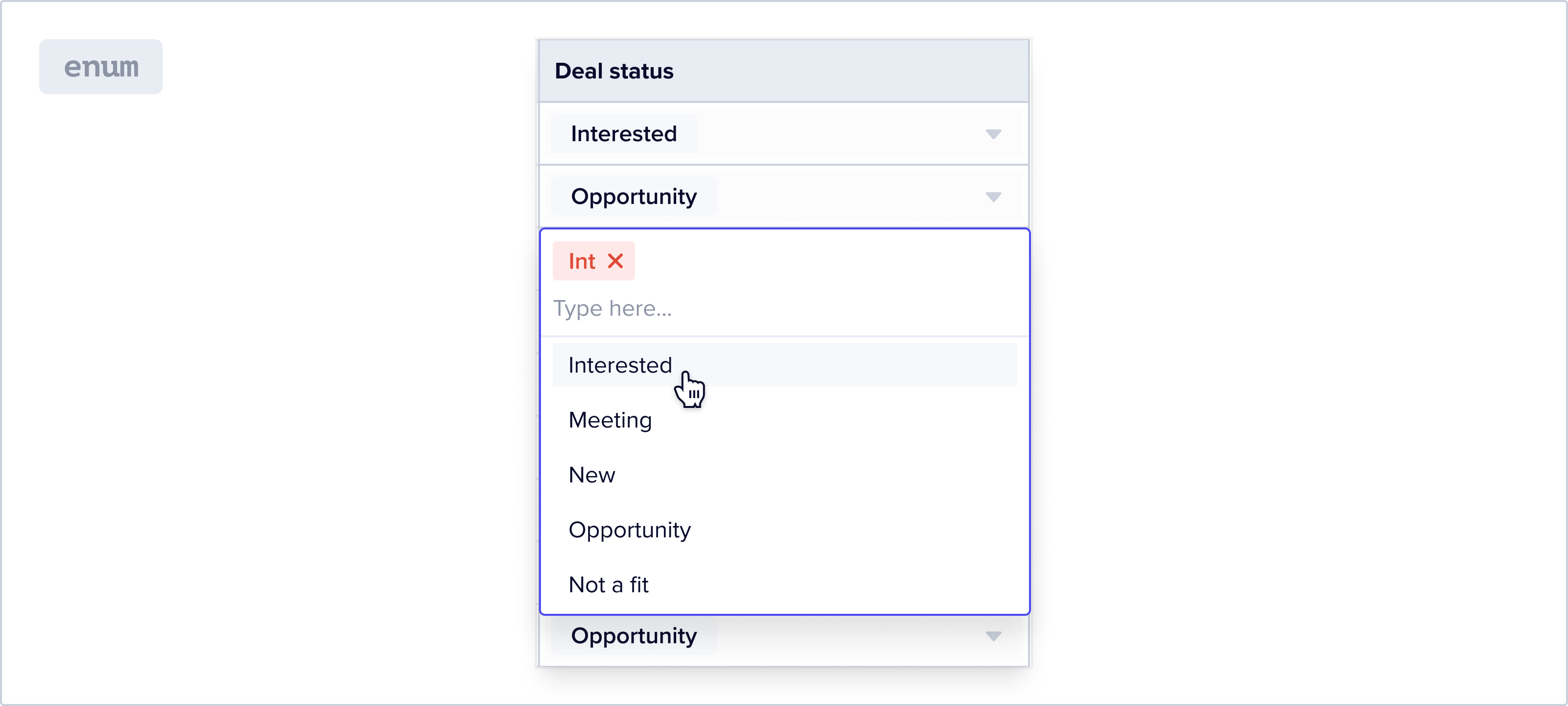
The edit experience is similar to that of a dropdown. This makes it really easy for a user to switch between different valid option. The dropdown is searchable to make for a pleasant user experience when the number of valid options is large. We restrict the entry of new data in these fields to valid options.
Booleans
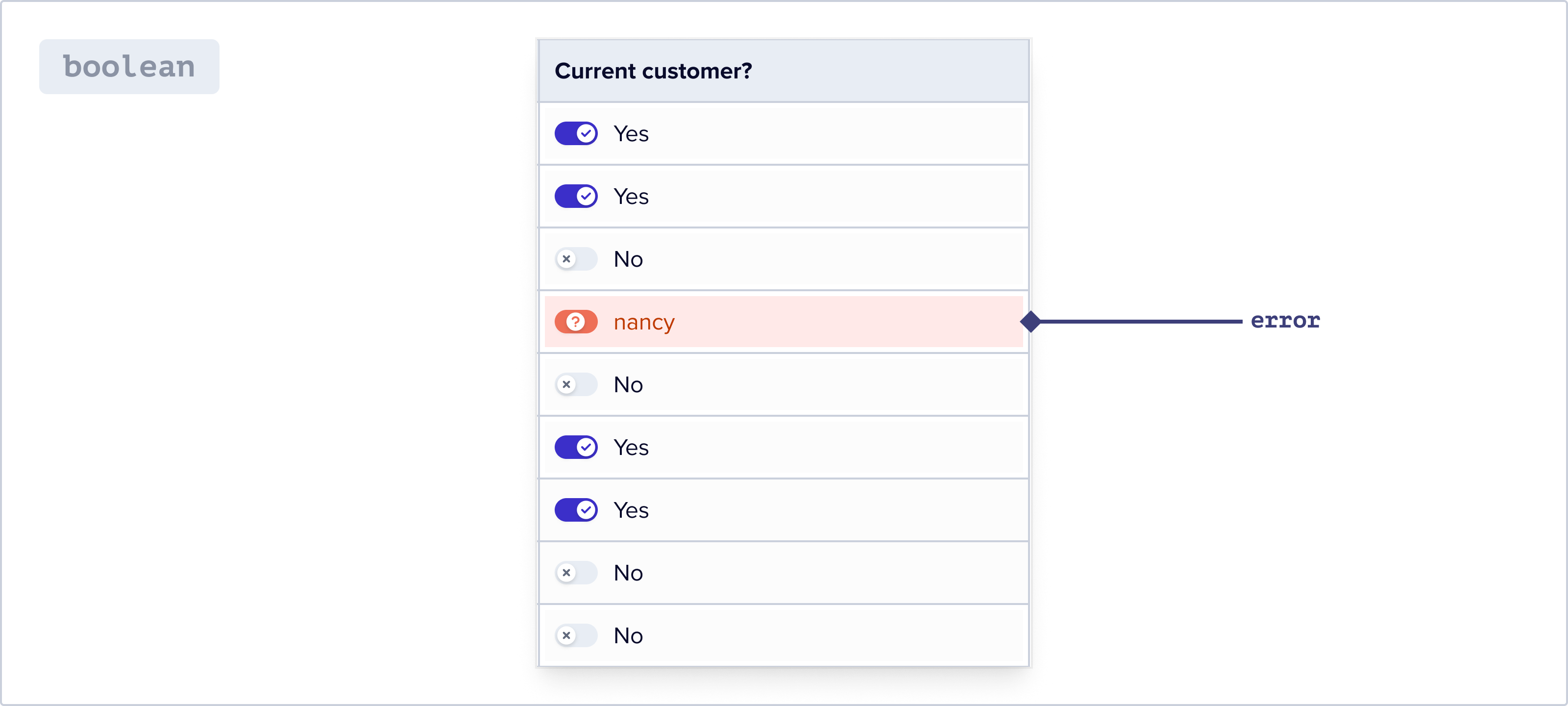
Booleans are displayed along with a tiny toggle UI. The “on” state of the toggle is brightly colored, while the “off” state is gray. This makes it easy to visually see how many values are “on” vs “off”. Clicking the toggle switches the value.
When there’s an unexpected value in a Boolean field, it turns yellow or red, depending on whether it’s a warning or error.
No data is represented by an empty cell – but if a user were to hover over that cell a toggle in “off” state appears.
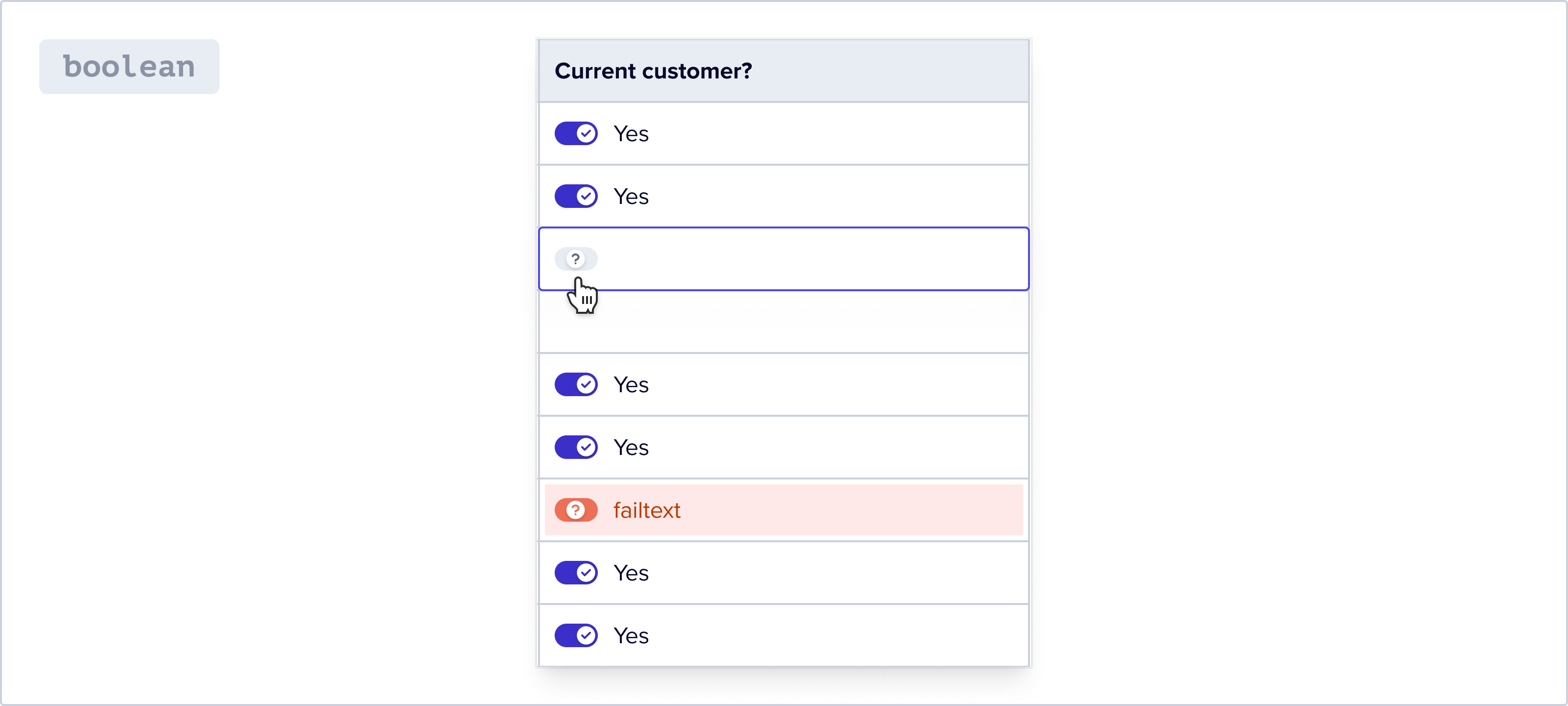
Clicking on a toggle when the cell is either in a warning, error or empty state turns it “on” and adds the value corresponding to the “on” state to that cell.
Toolbar
Like most data table, Turntable is a place where people work. And to do work, you need a toolbar.
To the left, Turntable’s toolbar has affordances for searching and filtering data as well as actions you can take on your some or all of your data.
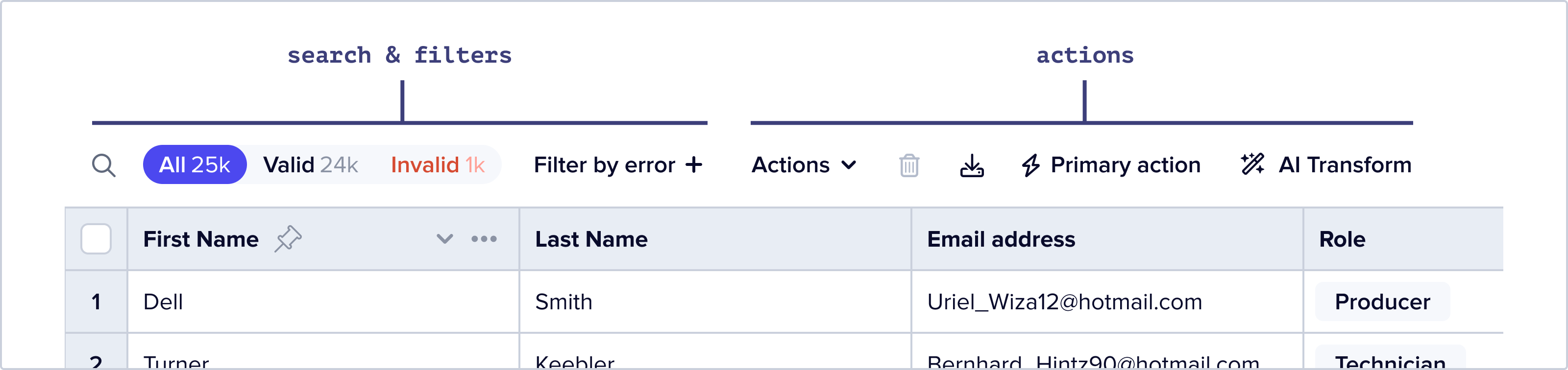
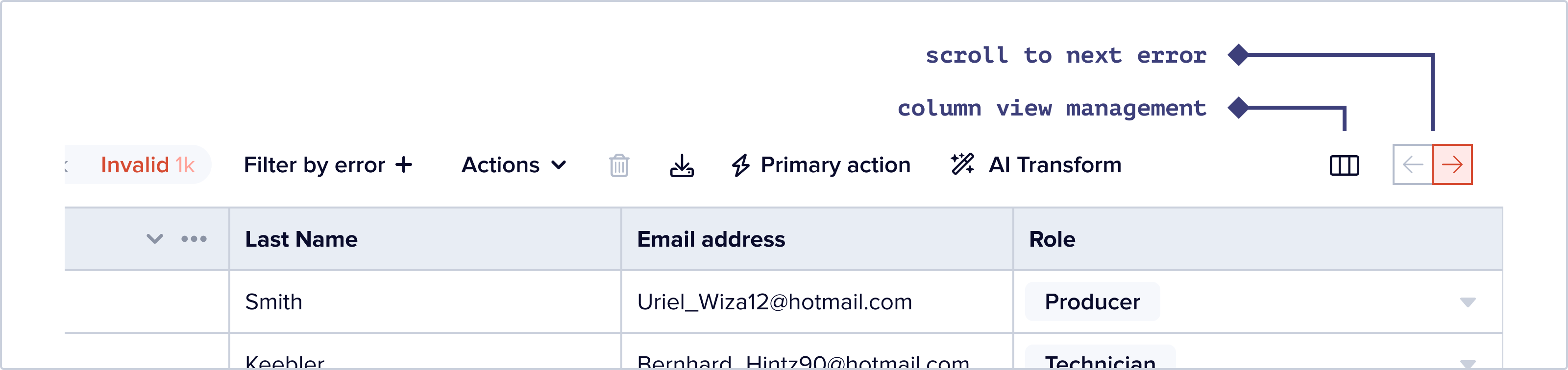
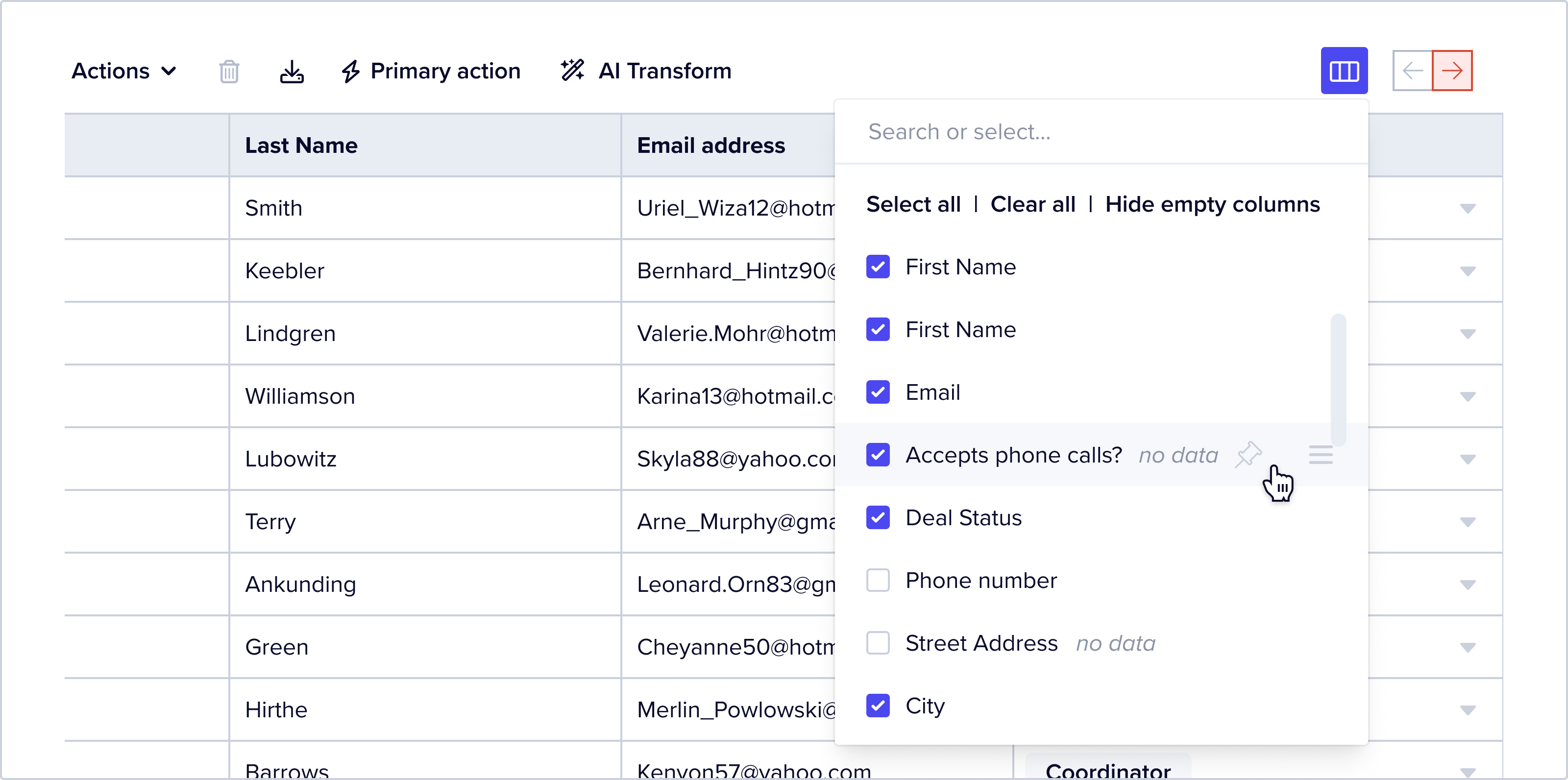
To the right are affordances to help you narrow down what you are looking at: a column management tool and a “scroll to next error”, which simply scrolls you to the next column out of view that has one or more cells with an error in it.
Search & Filters
For anything more than a 100 or so records, users are going to want to search through their data. Default cmd+f browser functionality fails when there’s data that hasn’t been loaded into the browser window.
Turntable offers free-text string search that looks for exact matches across all columns.
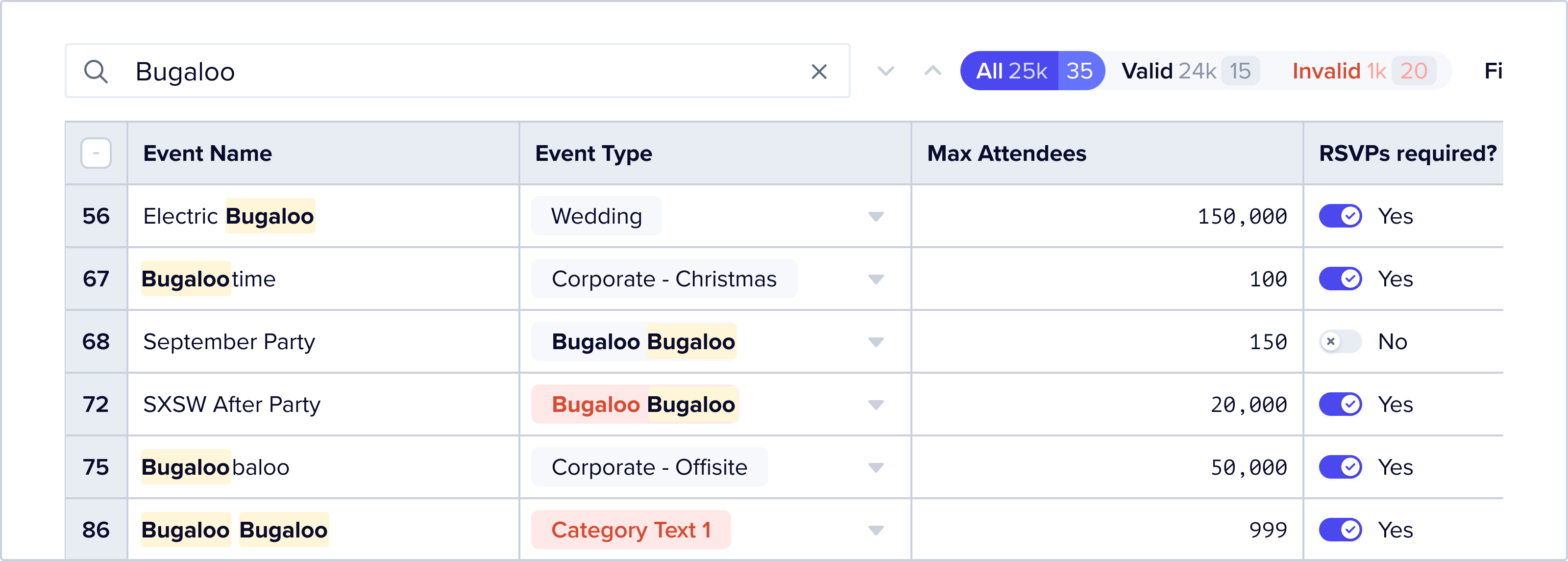
The “search in field” allows users to narrow criteria further.
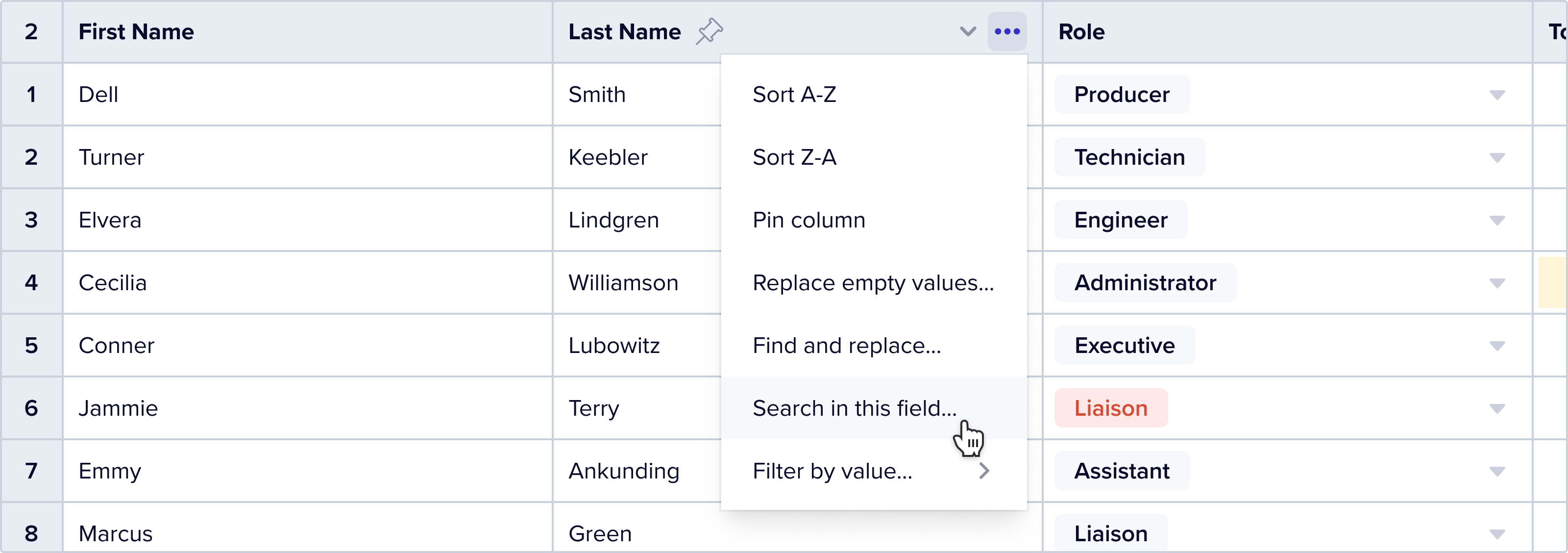
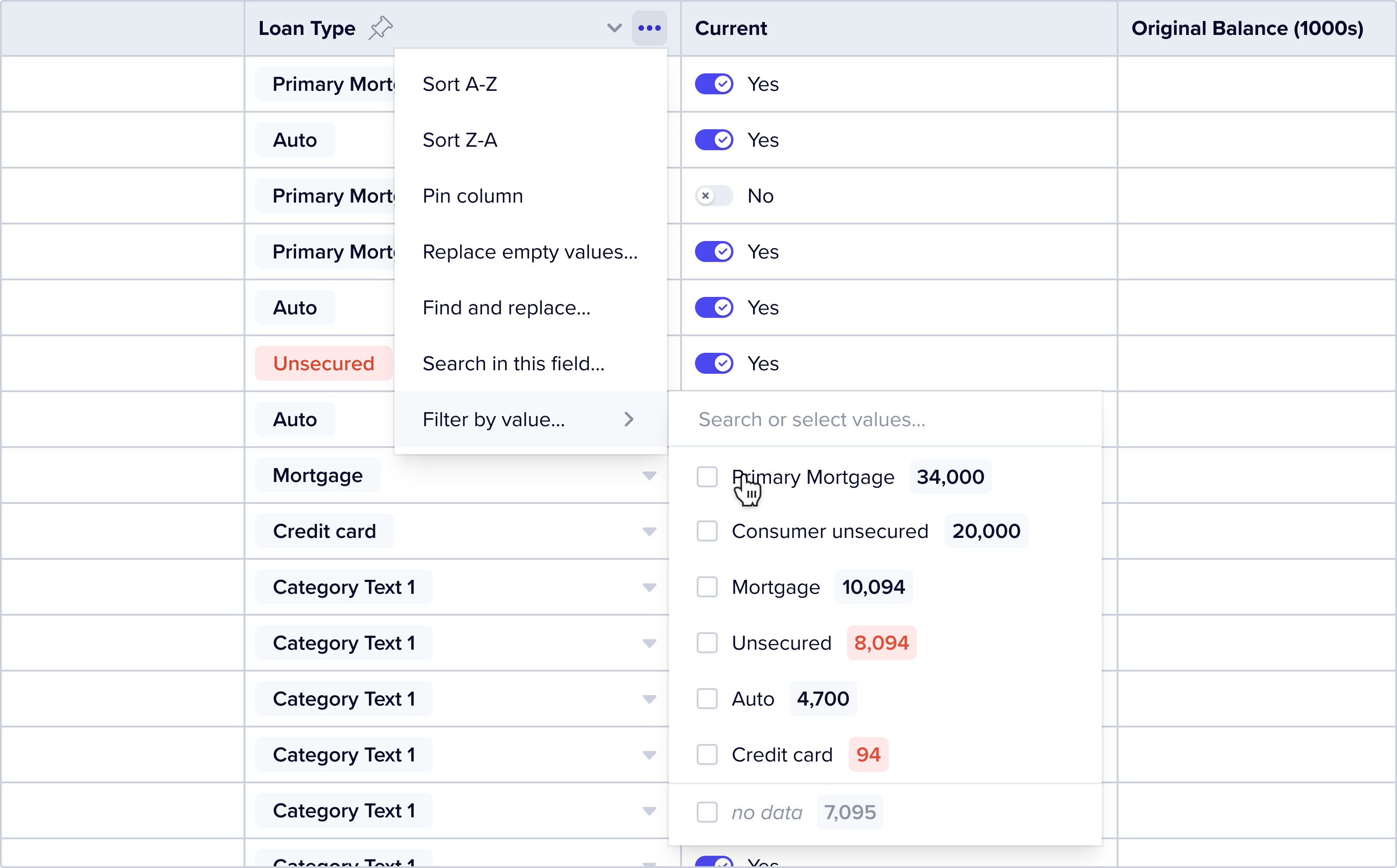
The “filter by value” feature, inspired by Google Sheets’ functionality, offers users a list of unique values in a field to select from.
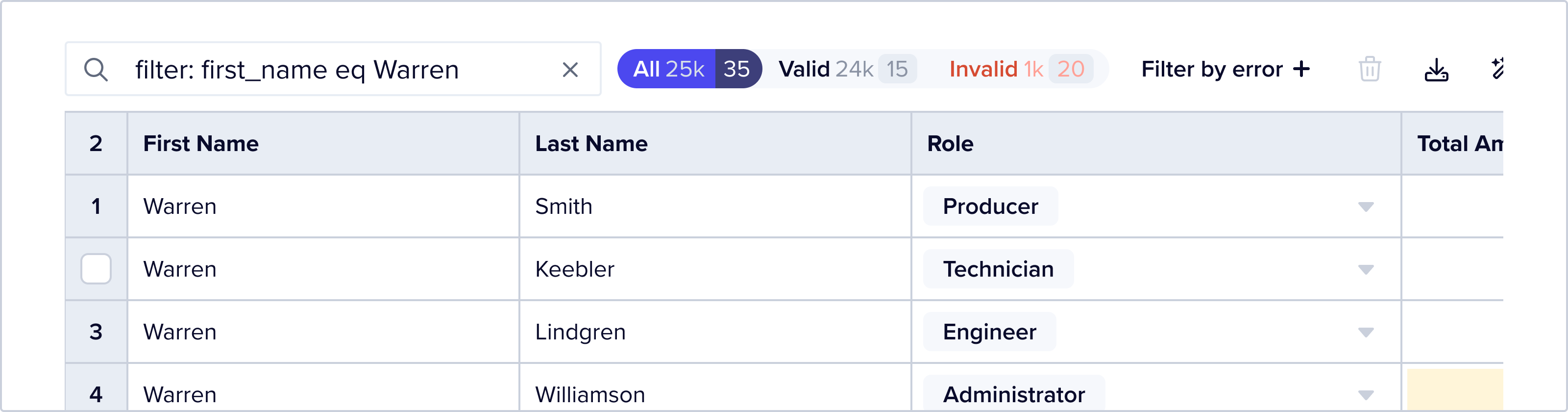
Users can also filter data using FFQL, a simple querying language that allows you to string together a series of AND and OR statements to filter a dataset down to far more specific criteria.
Actions
Turntable is a UX where you can do things to your data — a checkbox select mode is the most effective way to tell a user what data they have selected.
When a user hovers over a row index, a checkbox shows up. Once clicked, it turns the whole row index into a column of checkboxes.

The on the top most row index is a quick way to select all loaded data, respecting all applied filters.
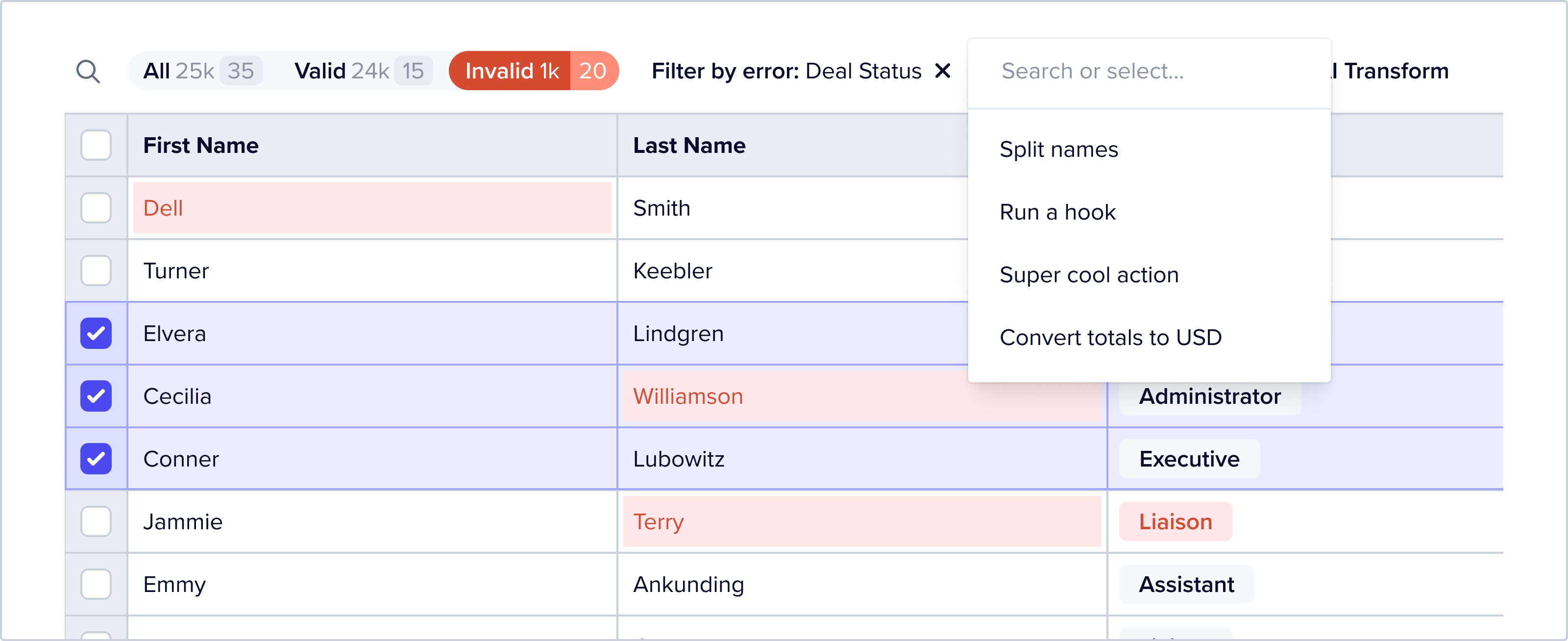
Once a user selects data, they can then choose from one of the many available actions in the table toolbar. Delete, download and AI transform are default features, with the last one being limited to pro-accounts.
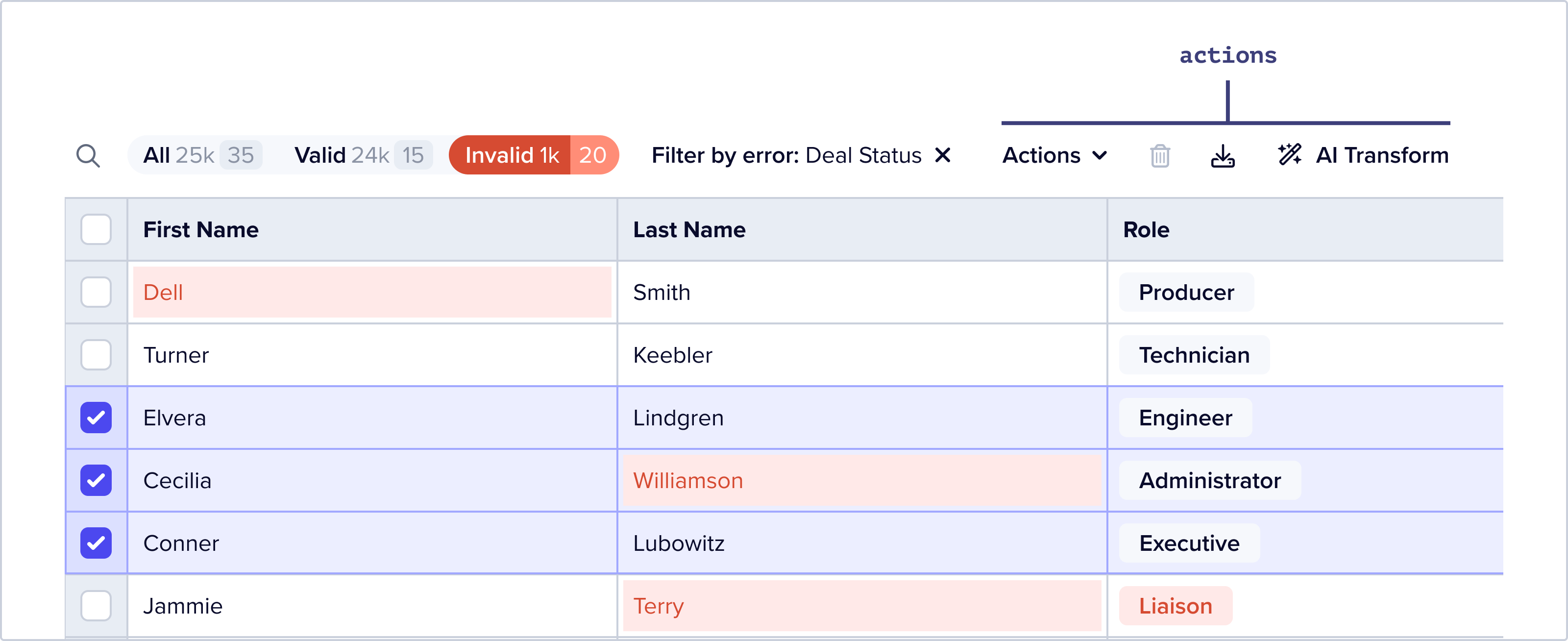
Turntable also supports an infinite number of custom actions, i.e. actions configured by anyone implementing Flatfile, using our Actions framework. Custom actions are nested under the “Action” dropdown, or show up in the main toolbar if they are marked as “Primary.”
View Management
Some of the sheets configured in Flatfile have very wide schemas, sometimes with hundreds of columns. Not all users are uploading datasets that contain values for all the columns in the target schema. Turntable makes it easy to only look at the data that is relevant to the user in that moment.
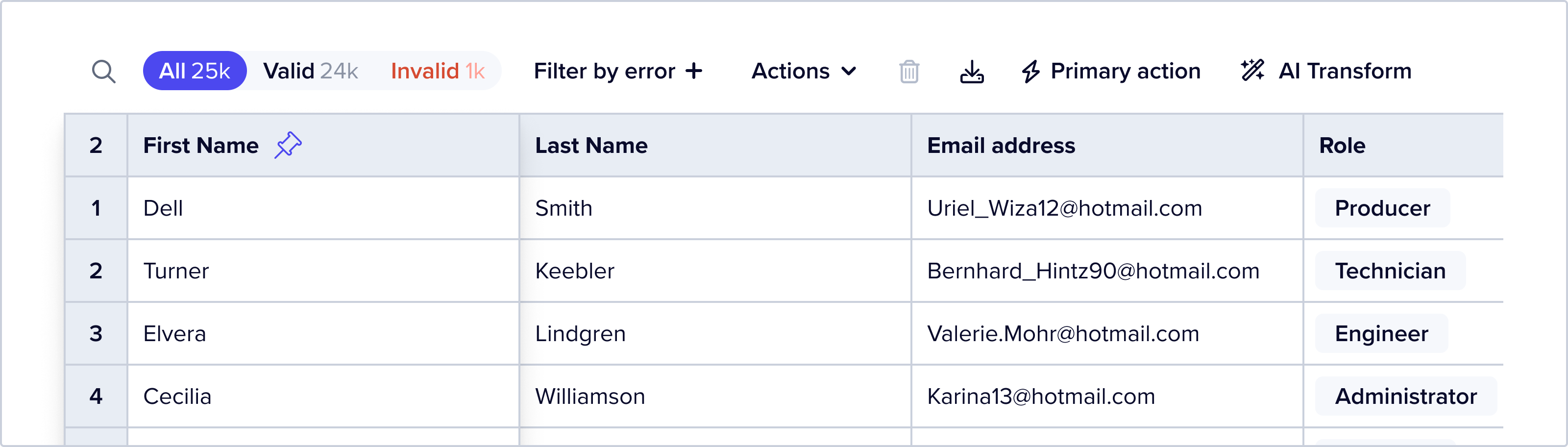
Users can pin up to three columns.
User can also choose which specific columns they want to see using the Column Management feature. Hiding all empty columns is a one-click operation.
Versioning
When a users can do things to their data in bulk, they can sometimes do the wrong things. “Snapshots,” a recorded instance of a sheet at a moment in time, are taken every time a bulk operation is performed on the sheet. These snapshots show up in the Version History panel, triggered by a little clock icon on the top right of the sheet.
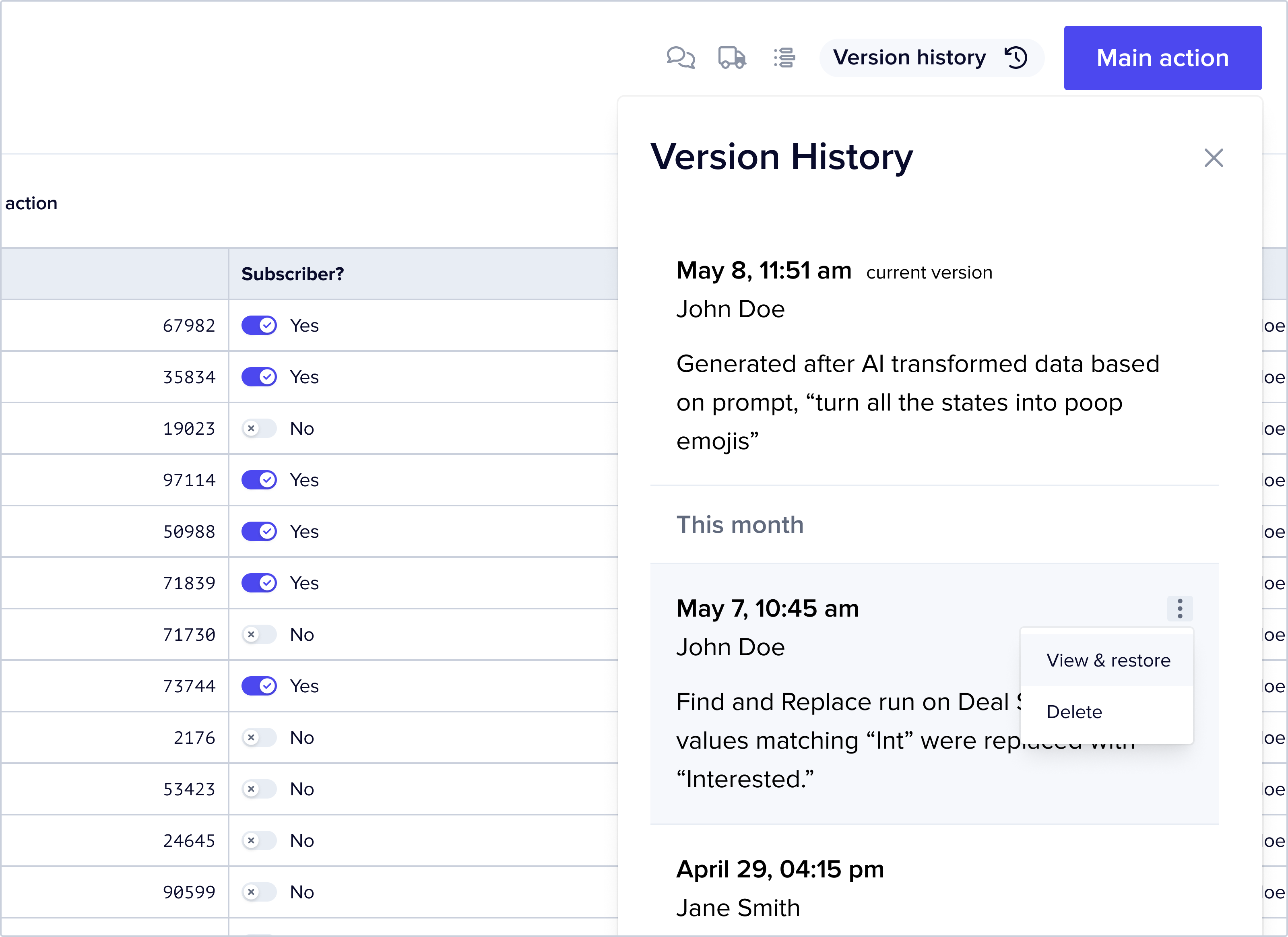
Users can view or revert to any available older version of their data, making it easy to recover from mistakes.
 Lisa Mahapatra